
Xiaowei IoT App
Smart IoT App
Adding devices, daily control, scenes and automation, alarm notifications — all in one app. Both apps run the same features: Xiaowei IoT carries the Xiaowei brand, Smart IoT is the neutral build.
Two apps
One app, two identities
The same app underneath: devices, scenes and alerts behave identically. Only the branding differs.
- Xiaowei IoT App
- Carries the Xiaowei brand. Use it when you deploy the full Xiaowei solution and face end users directly.
- Smart IoT App
- The neutral build, with no Xiaowei branding in the interface. For partners who would rather not expose the supplier brand to end users.
- Your own brand
- White-label this app: swap the brand look, the app name and the store listing, with no need to rebuild the features.
Home screen
Open the app, see the whole home at once
Pull down to switch between multiple homes; each home keeps its own members, rooms and devices.
- 1 Weather and environment Temperature, humidity and air quality in your city
- 3 Switch by room Bedroom, bathroom, kitchen. Rooms are yours to define
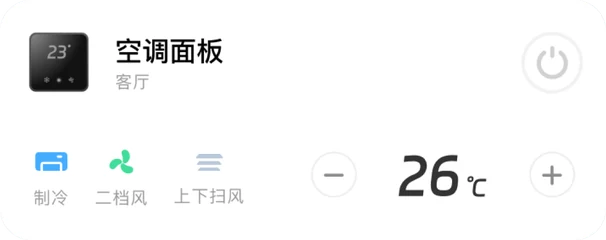
- 5 Common actions in place Set temperature, fan speed and swing right on the home screen card
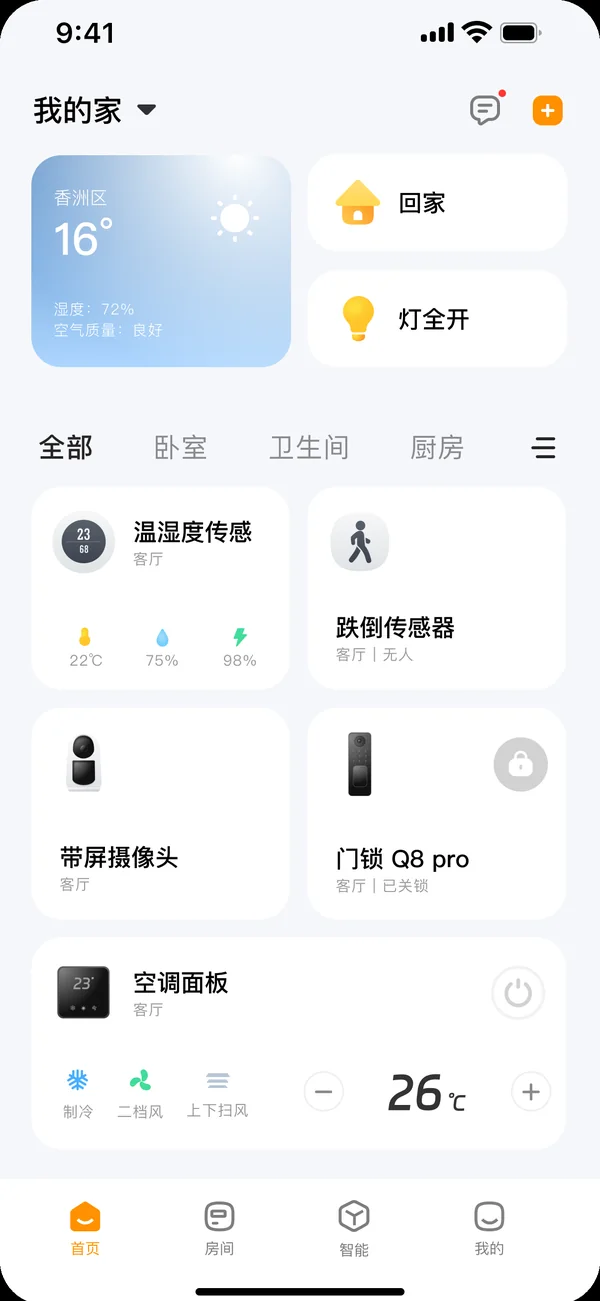
- 2 Favorite scenes on top “Home” and “All lights on” sit on the first screen, one tap to run
- 4 Status on the card itself Lock state, temperature and humidity readings, presence. No need to open the device
- 6 Home · Rooms · Automation · Me Four tabs, never more than two levels deep
Devices
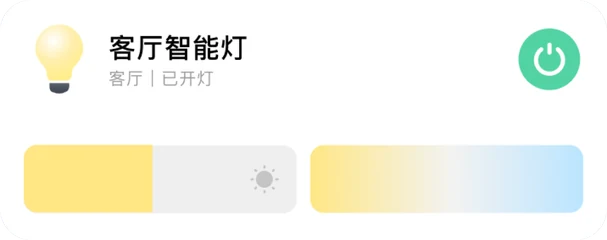
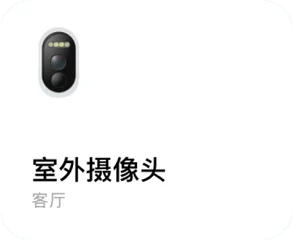
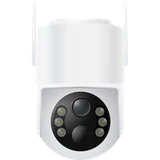
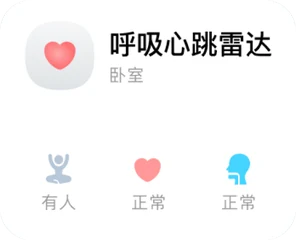
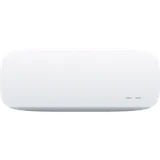
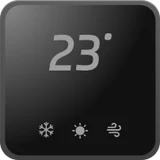
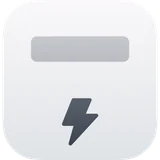
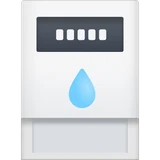
Every common household device has its own card
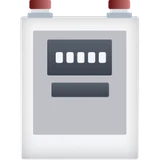
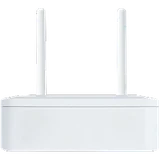
From lights and switches to locks, cameras, radars and meters: add a device, file it under a room, and choose whether it appears on the home screen.
-
 Smart light
 -
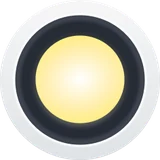 Spotlight
 -
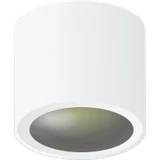 Downlight
 -
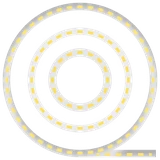 Light strip
 -
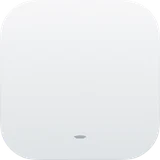 1-gang switch
 -
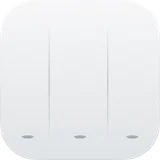 3-gang switch
 -
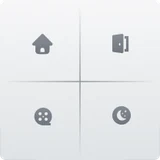 Scene switch
 -
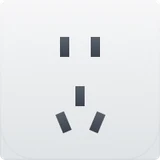 Power socket
 -
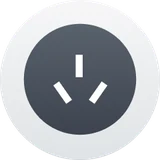 Metering socket
 -
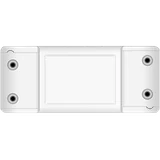 Relay switch
 -
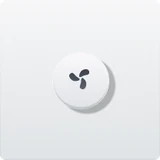 Fan switch





Device screens
A dedicated control screen for every device type
Tap a card to open the device screen. Each screen is laid out around the way that device is actually used.
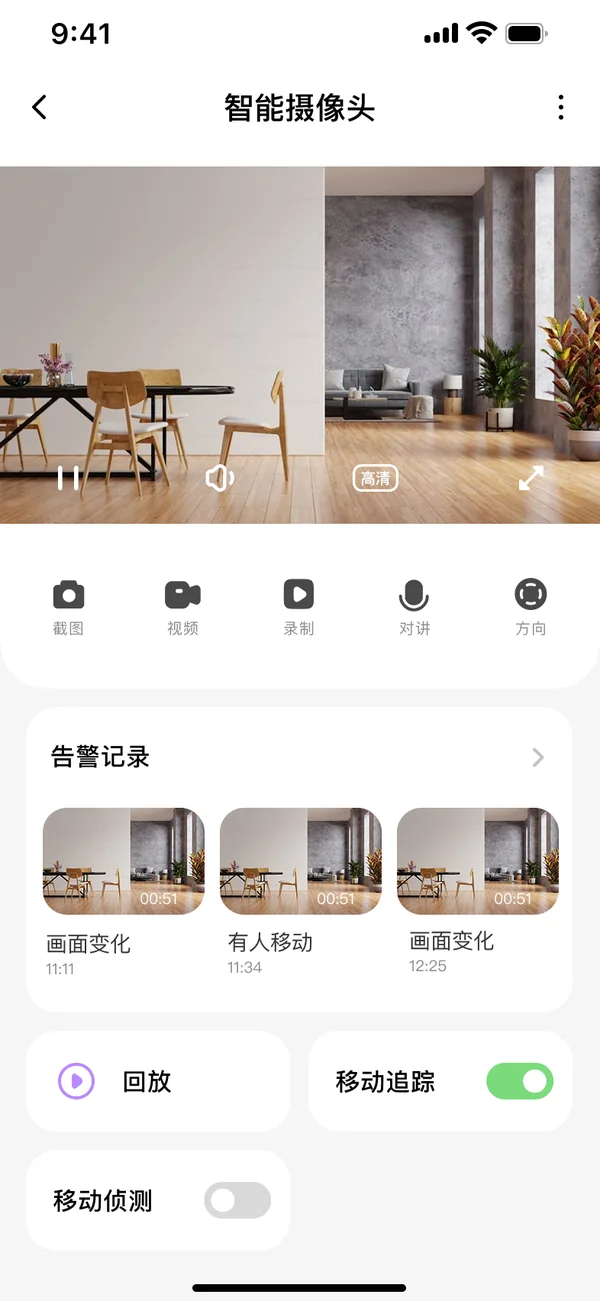
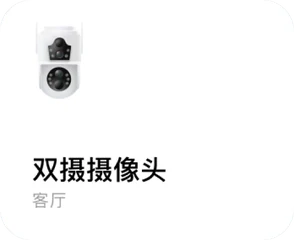
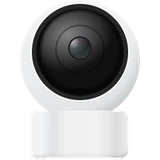
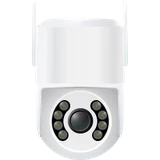
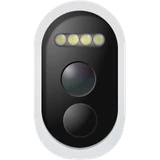
Camera
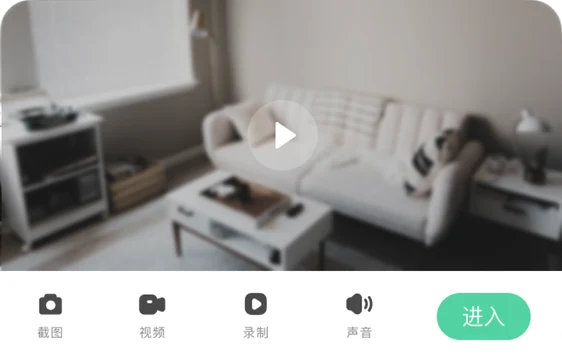
Live view, snapshots, recording, two-way talk and pan-tilt. Automatic capture when the picture changes or someone moves.
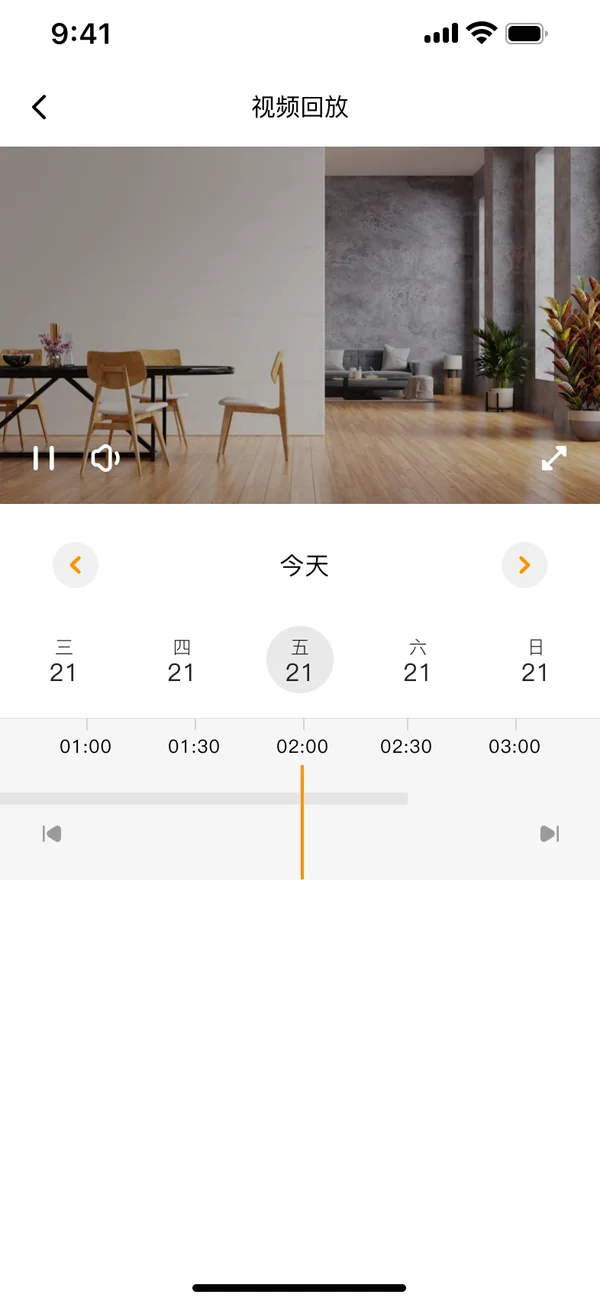
Video playback
Pick a date, drag the timeline, replay the recording.
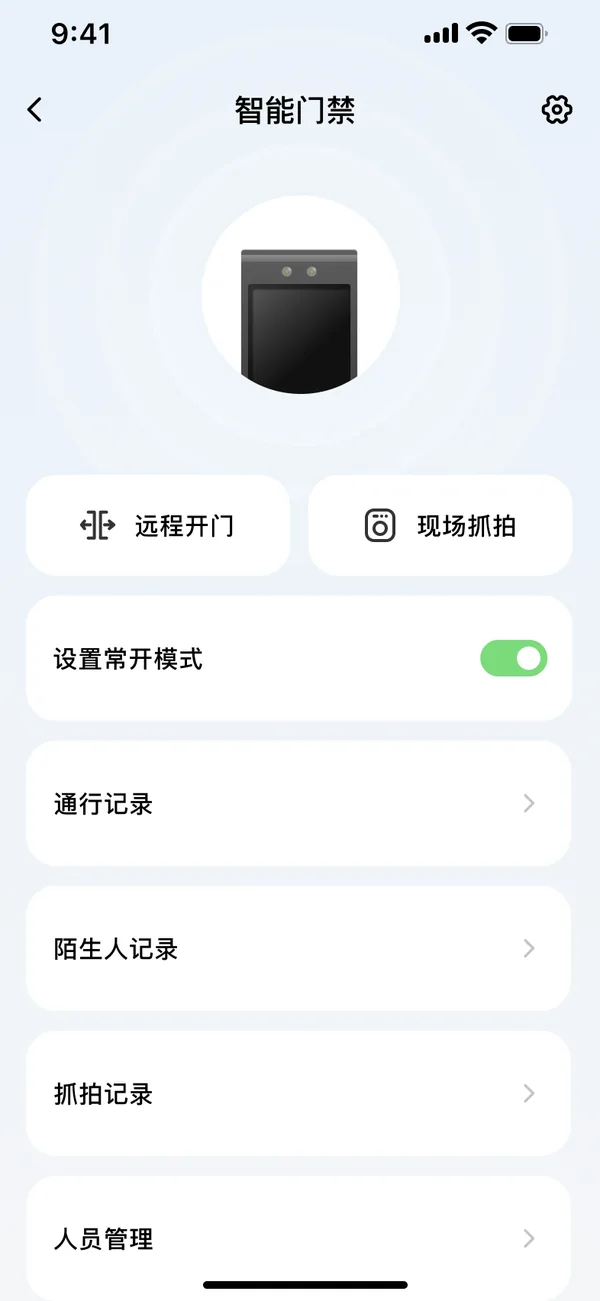
Access control
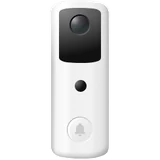
Open remotely, capture on site, hold the door open. Entry, stranger and snapshot records are checked separately; people and faces are enrolled on the phone.
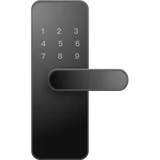
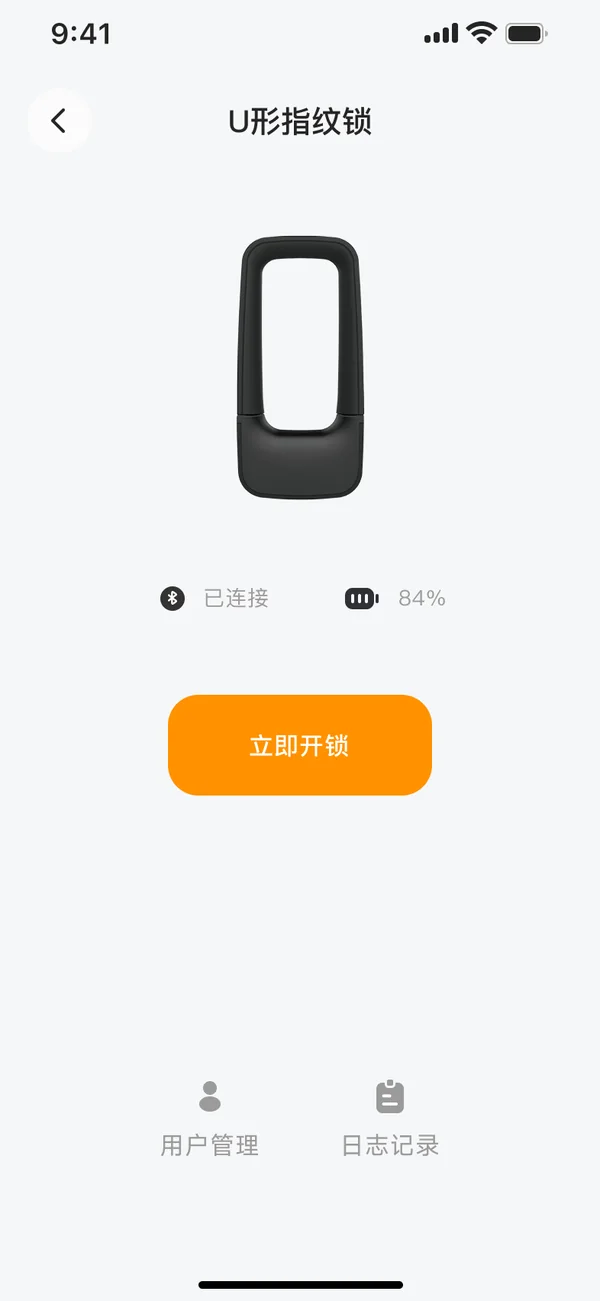
Fingerprint lock
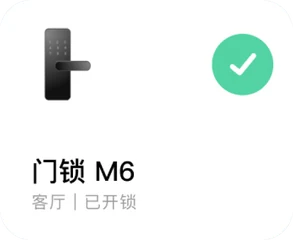
Connection state and battery at a glance, unlock from the phone; fingerprint user management and unlock logs.
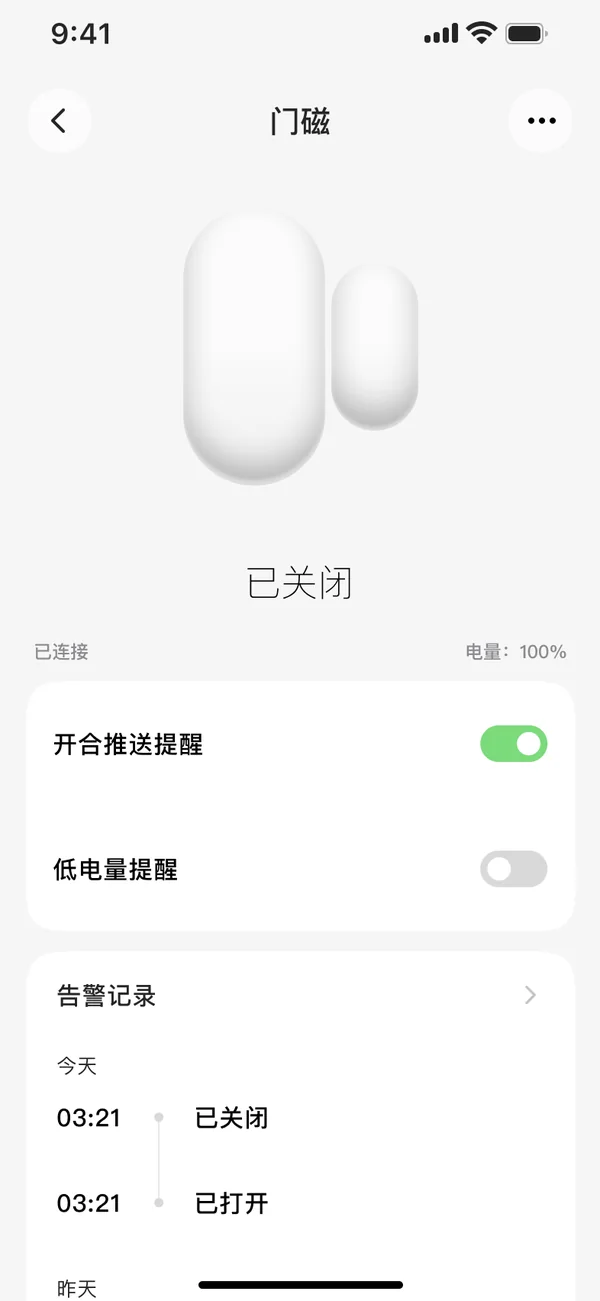
Door sensor
Open and close state plus battery in real time, push on every open and close, low-battery reminder, history kept by day.
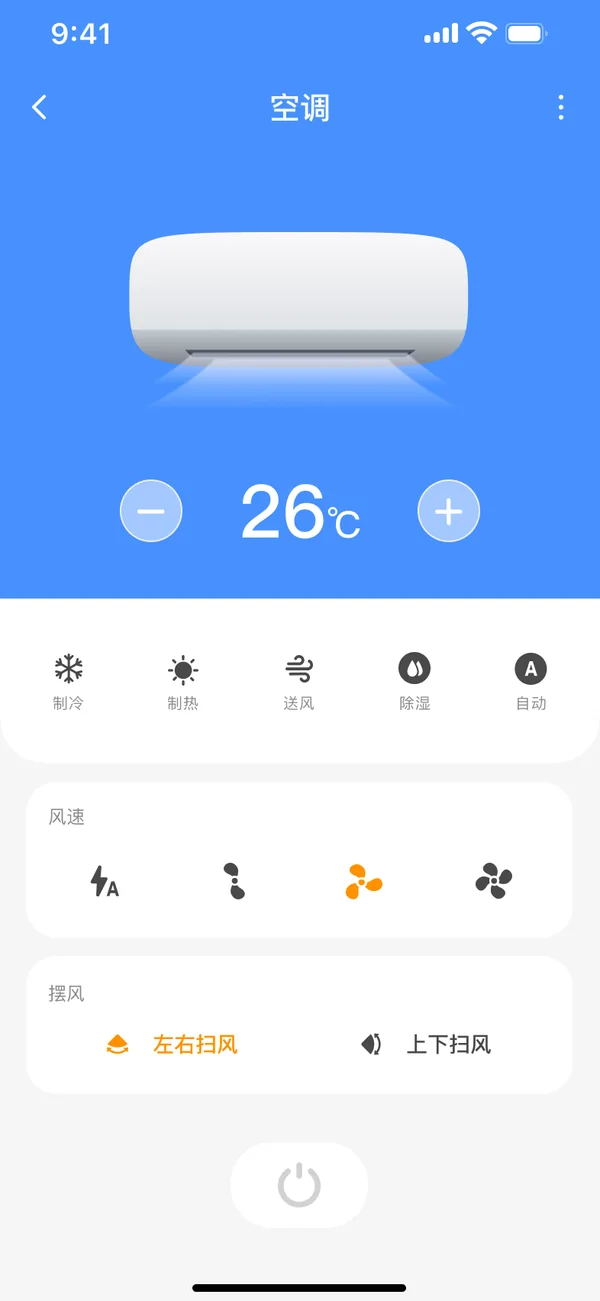
Air conditioner
Set the temperature and switch between cooling, heating, fan, dry and auto. Four fan speeds, horizontal and vertical swing.
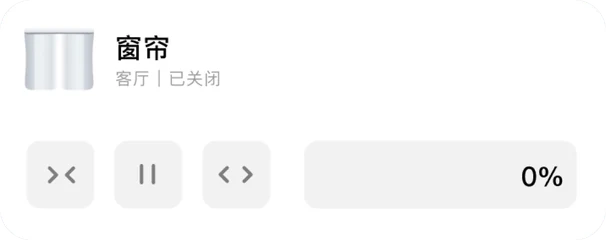
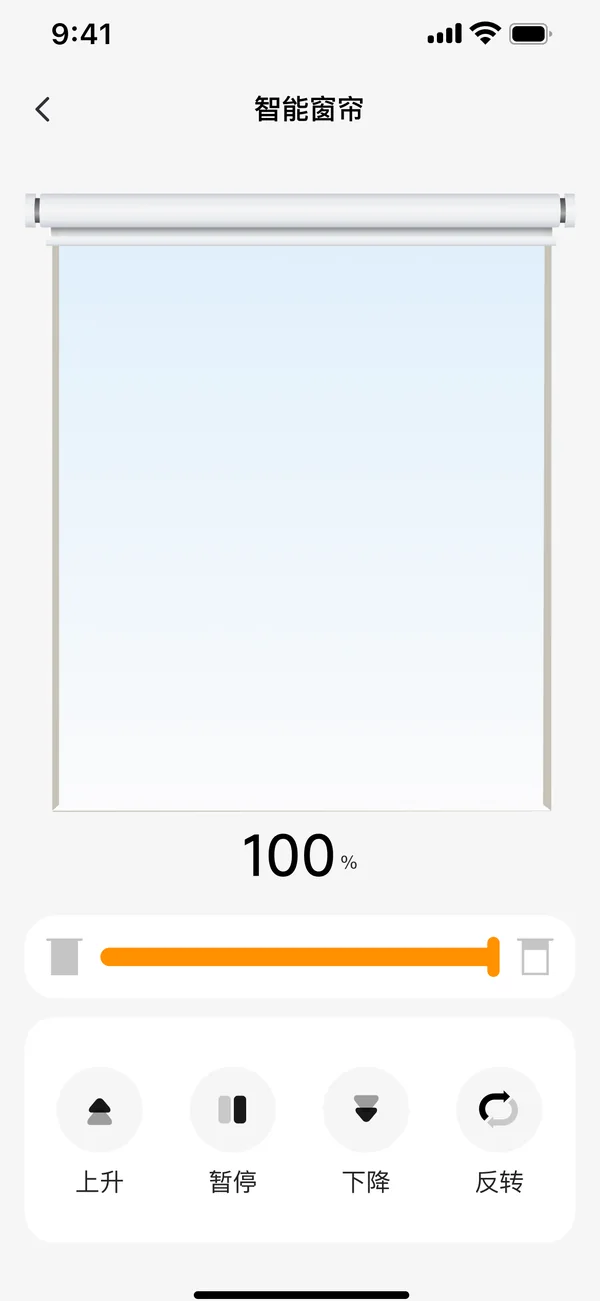
Curtain
Open by percentage; raise, pause, lower, reverse.
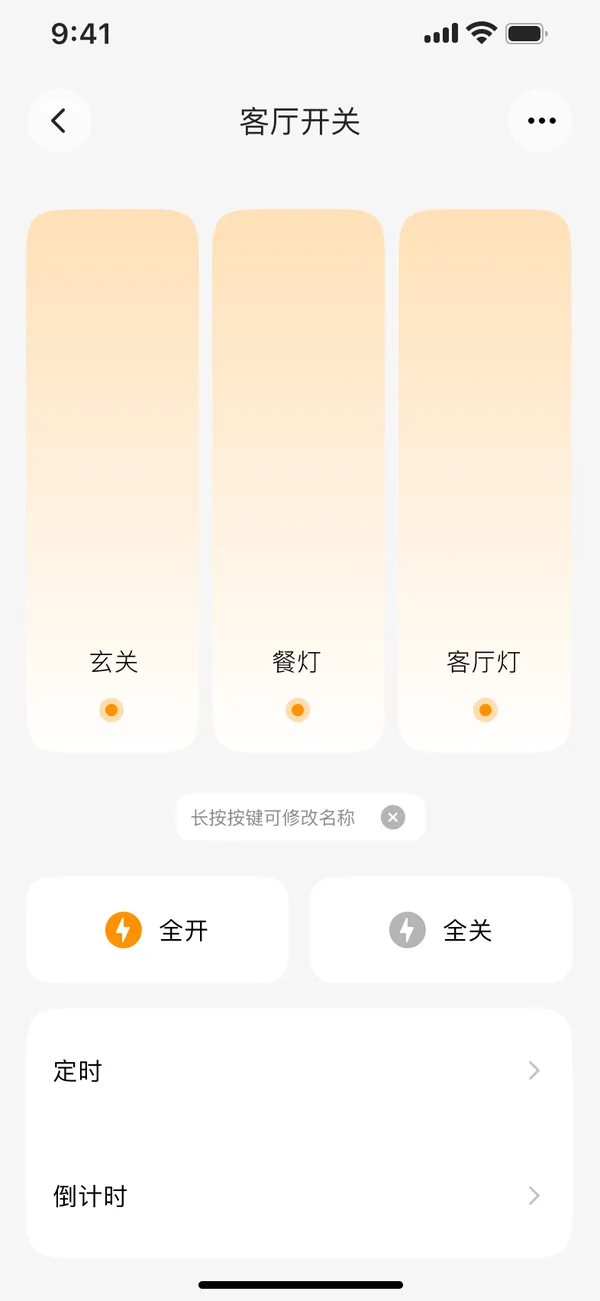
Smart switch
Control each gang separately and rename the buttons; all-on and all-off, with schedules and countdowns.
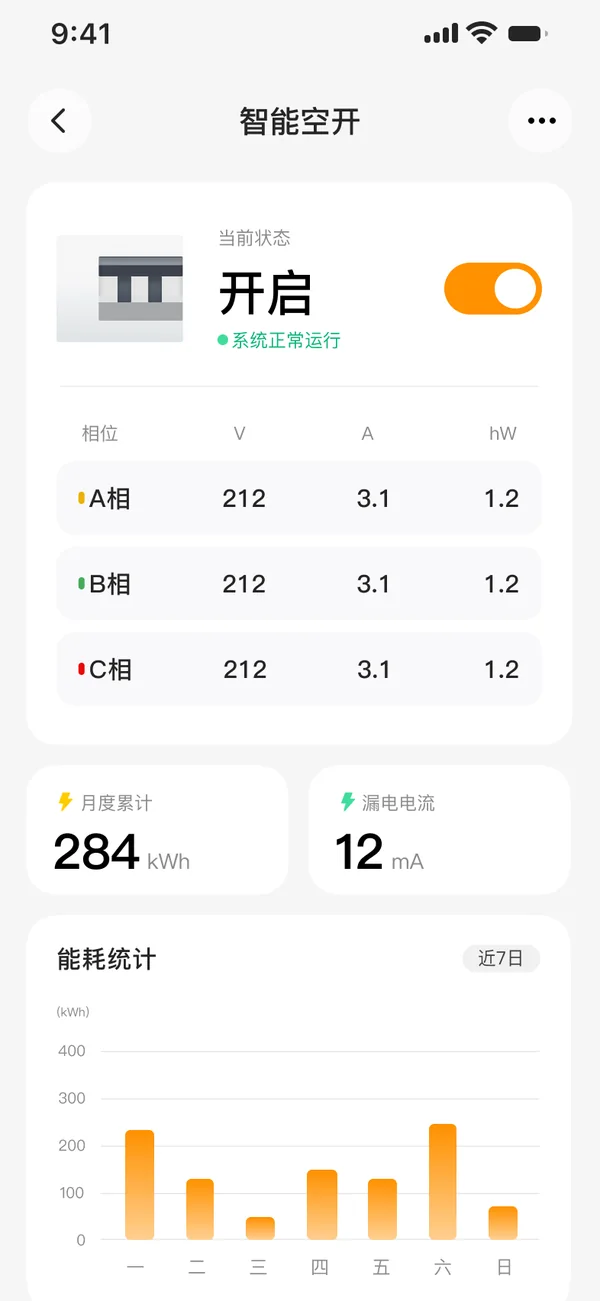
Smart circuit breaker
Switch remotely. Three-phase voltage, current and power in real time; monthly consumption, leakage current and the last 7 days of energy statistics.
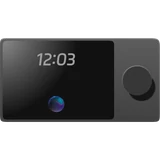
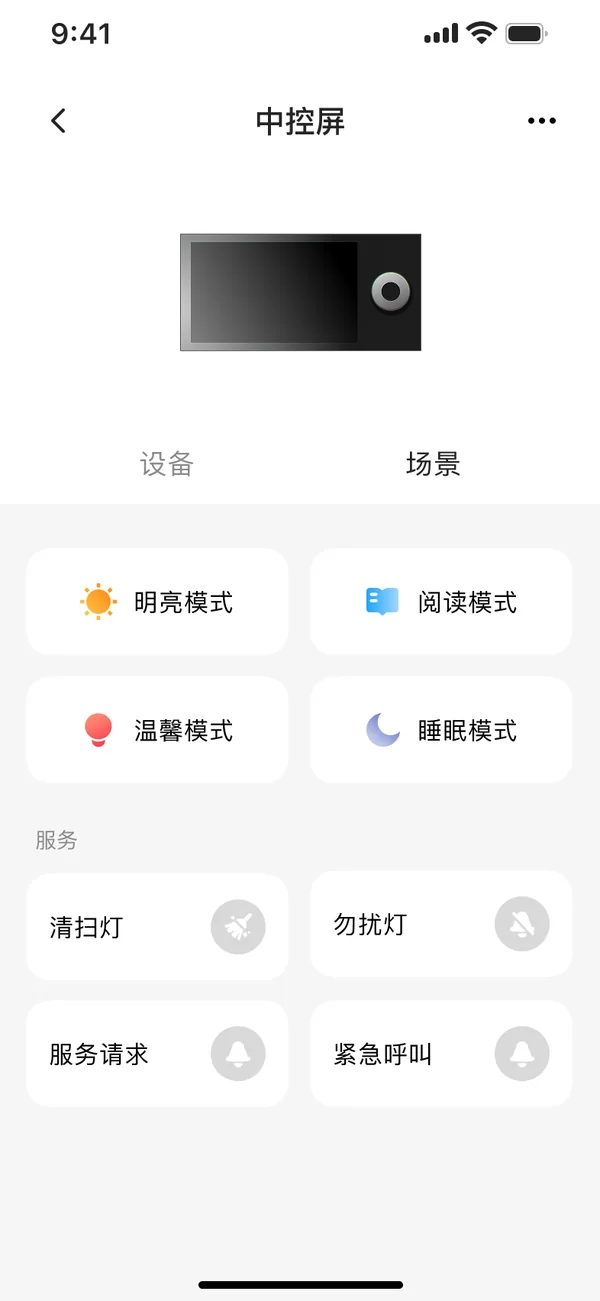
Control panel
Bright, reading, warm and sleep modes in one tap; service commands such as cleaning, do-not-disturb, service request and emergency call.
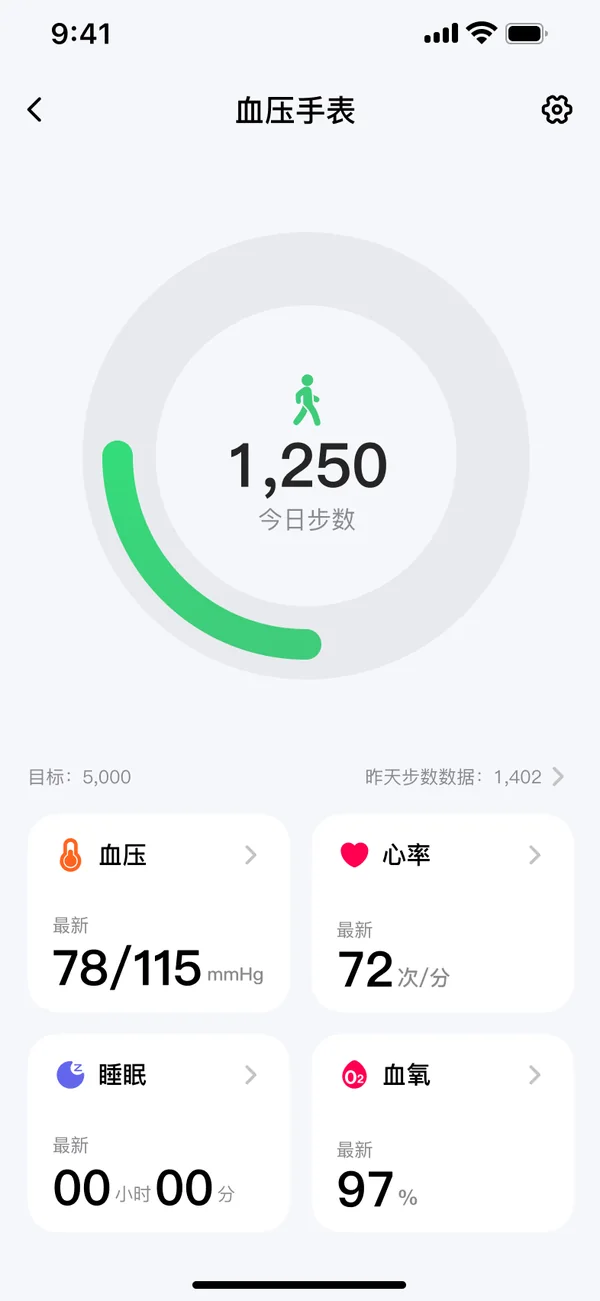
Health watch
Steps, blood pressure, heart rate, sleep and blood oxygen, each opening into its history.
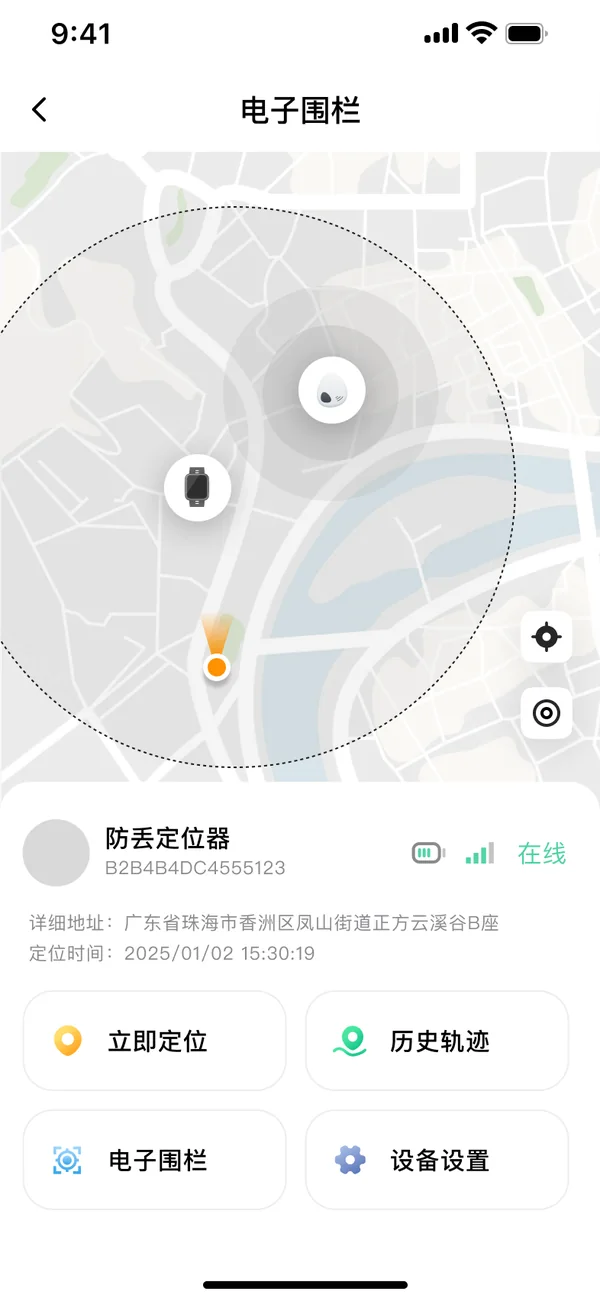
Locator
Locate now, replay past routes, set a geofence.
Automation
Run it with one tap, or let automation handle it
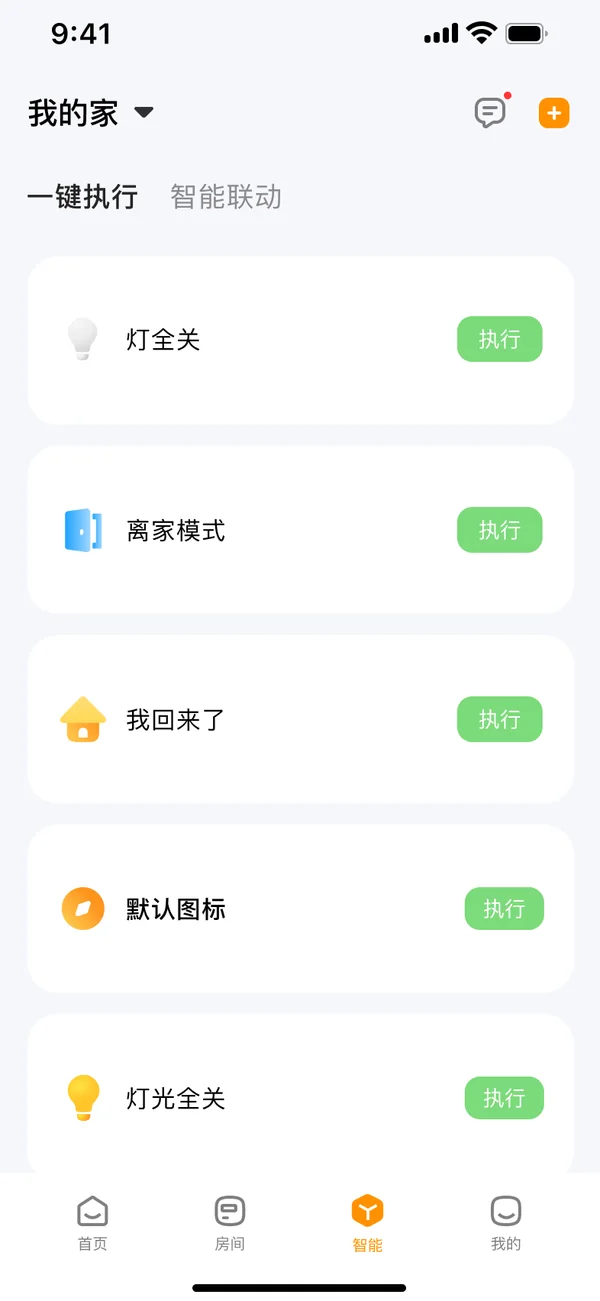
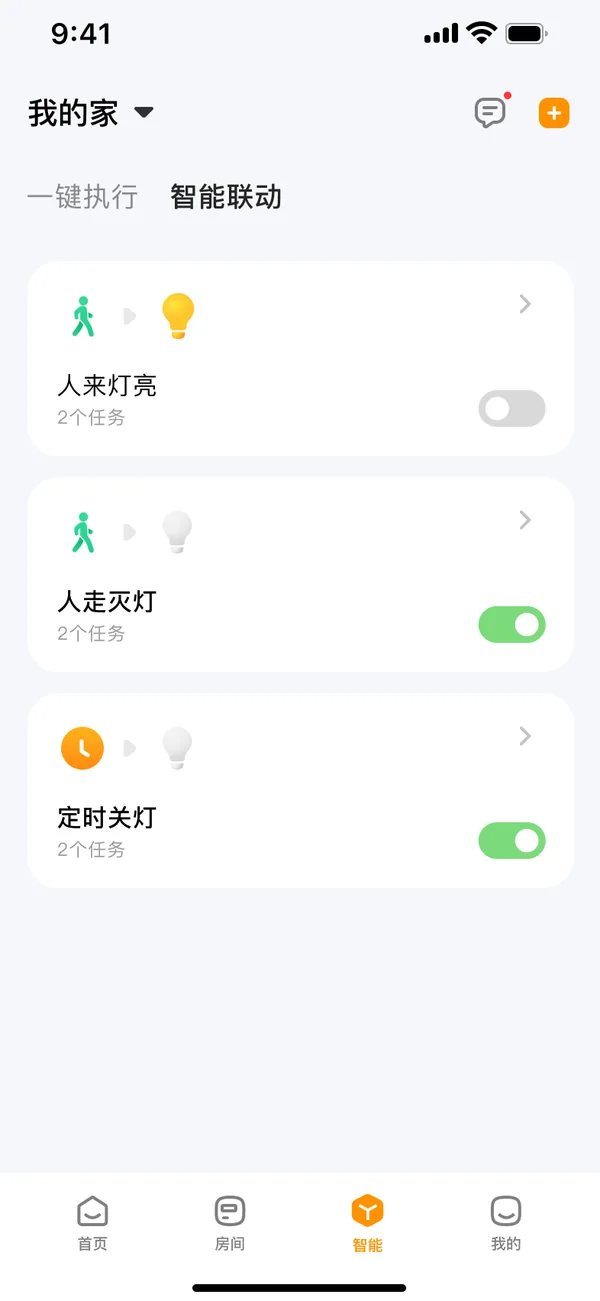
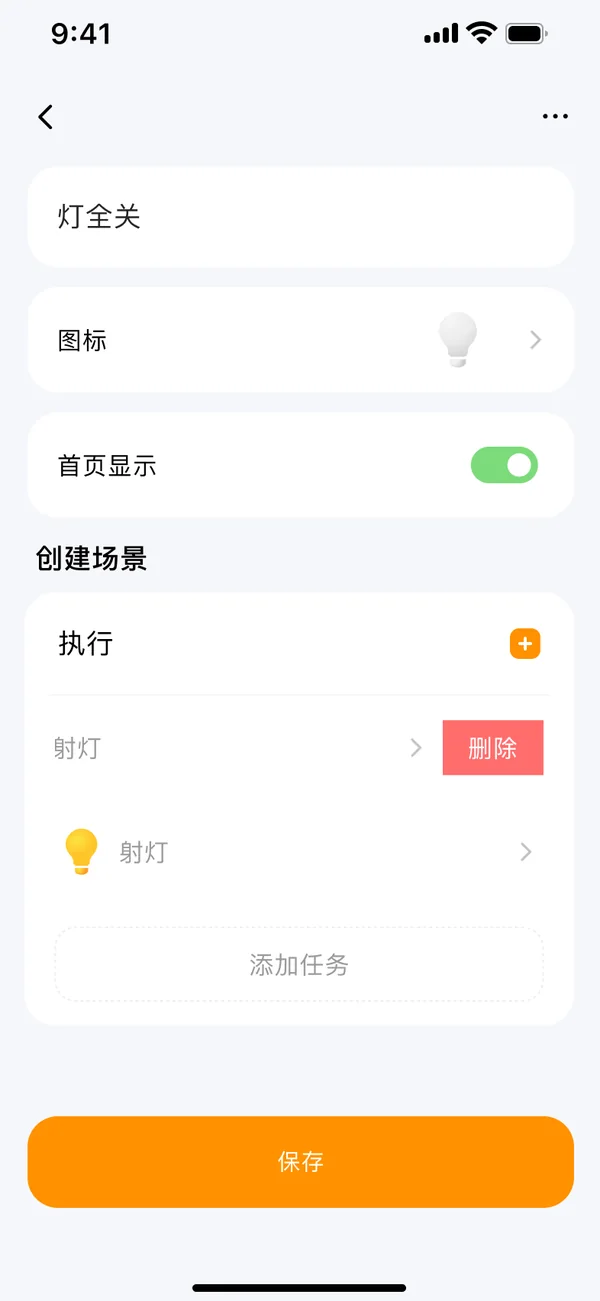
Bundle several actions into one button and that is one-tap execution. Trigger them automatically when conditions are met and that is automation.
- One-tap executionHome, away, all lights on… pin them to the home screen and one tap runs the lot.
- AutomationLight on when someone arrives, off when they leave, lights off on a schedule. Each rule can be switched on or off at any time.
- Three kinds of triggerA manual tap, a device changing state, or a schedule. An action can be a device, another scene, or a delay.
Care and alarms
When something goes wrong at home, the phone knows first
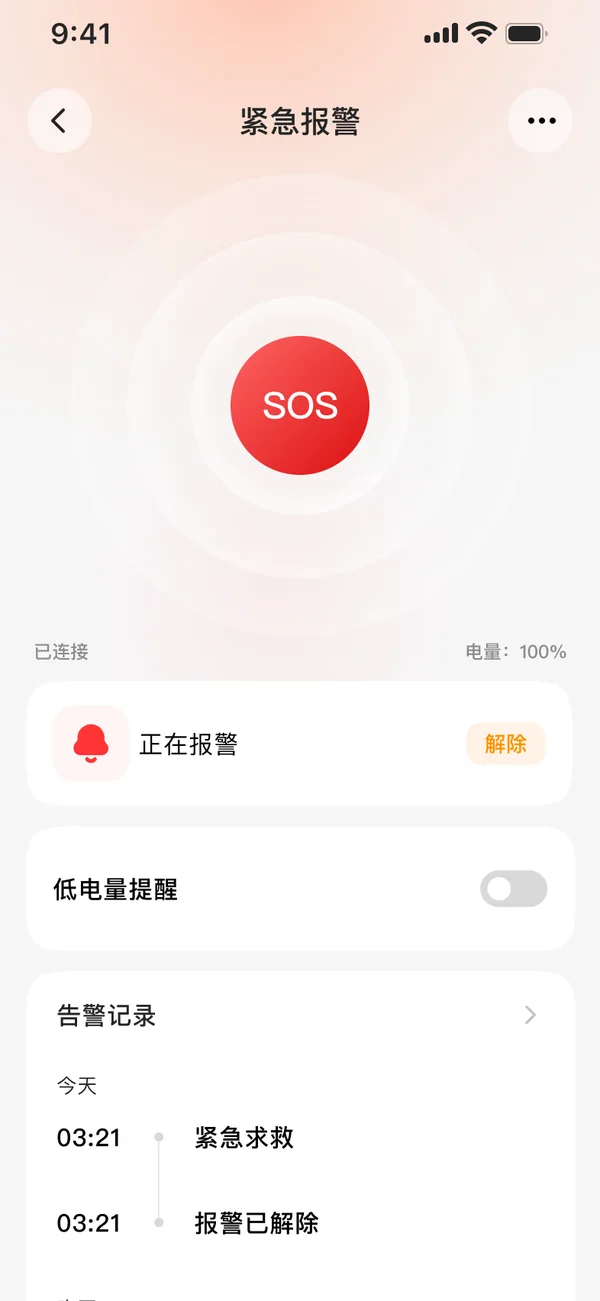
Alarms are pushed to the app in real time and records are kept by day; once handled, an alarm is cleared with one tap.
Fall radar as an example: what changes in the room shows up in the app at the same moment
-
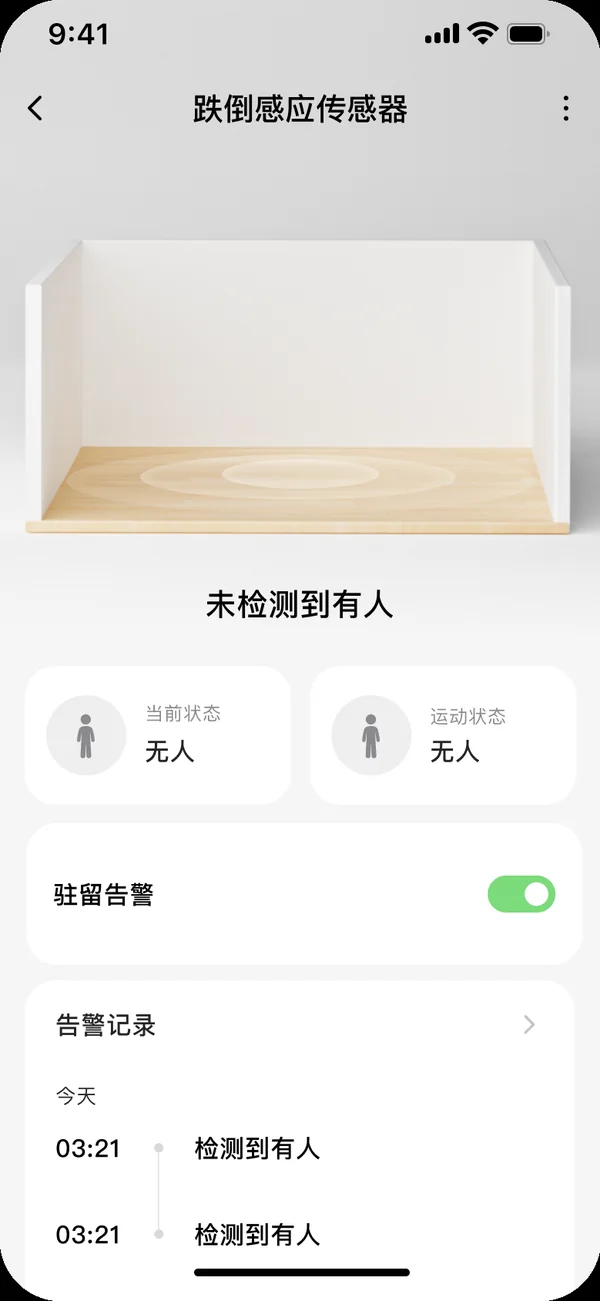
01No one detected
-
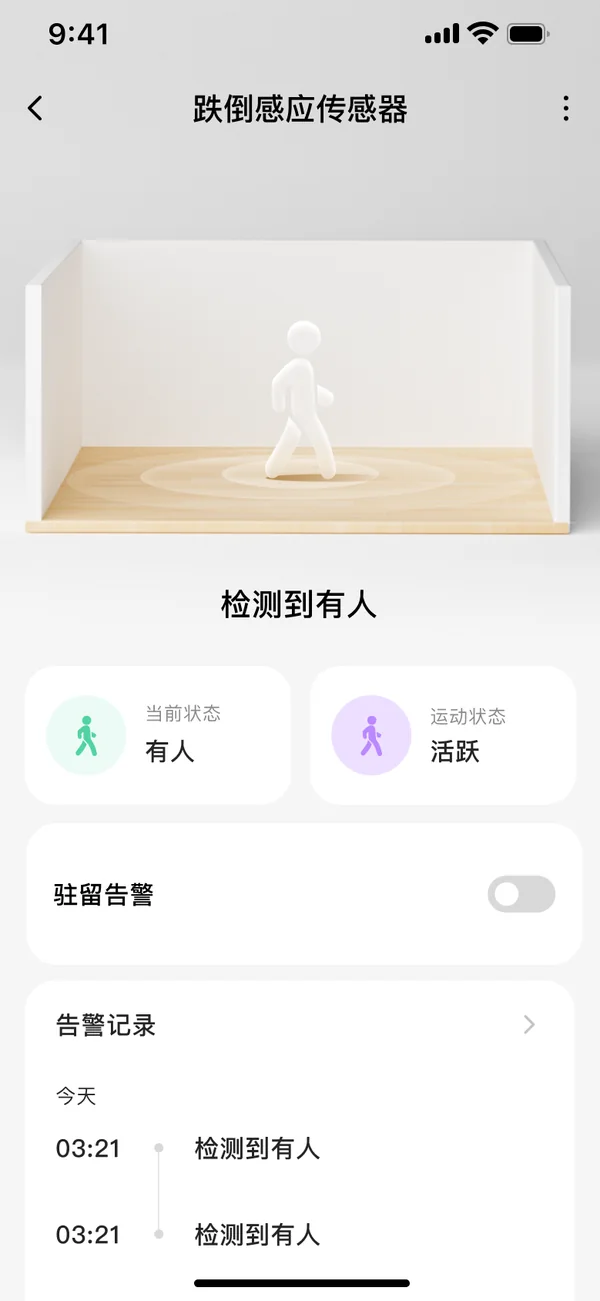
02Person detected
-
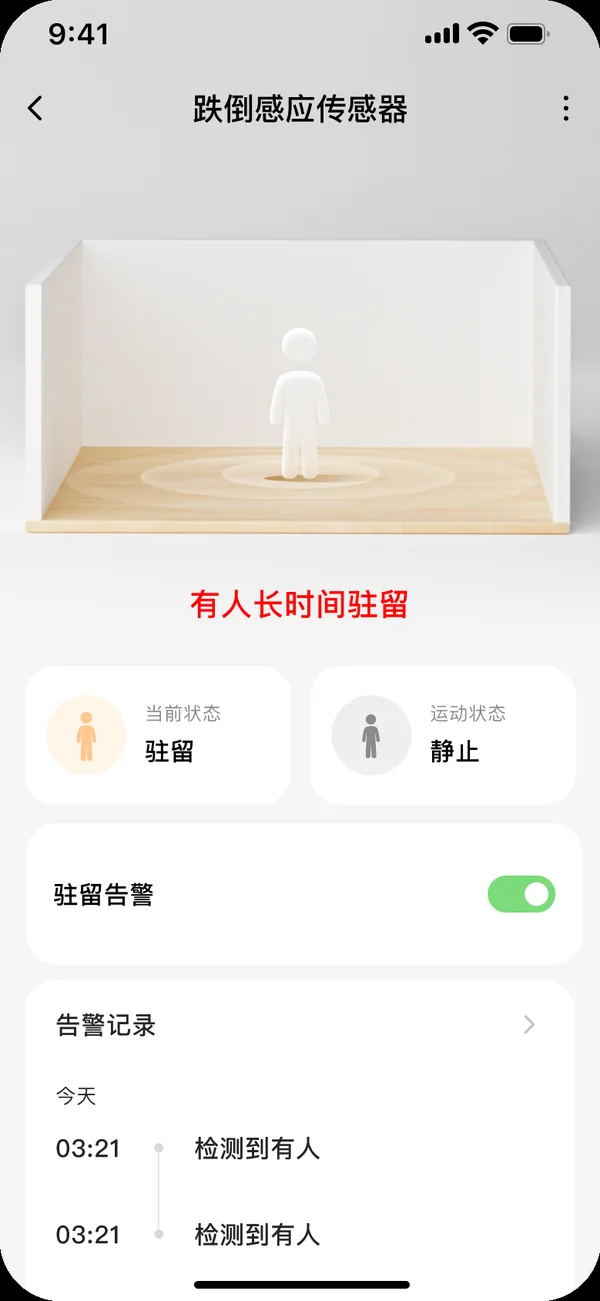
03Person staying too long
-
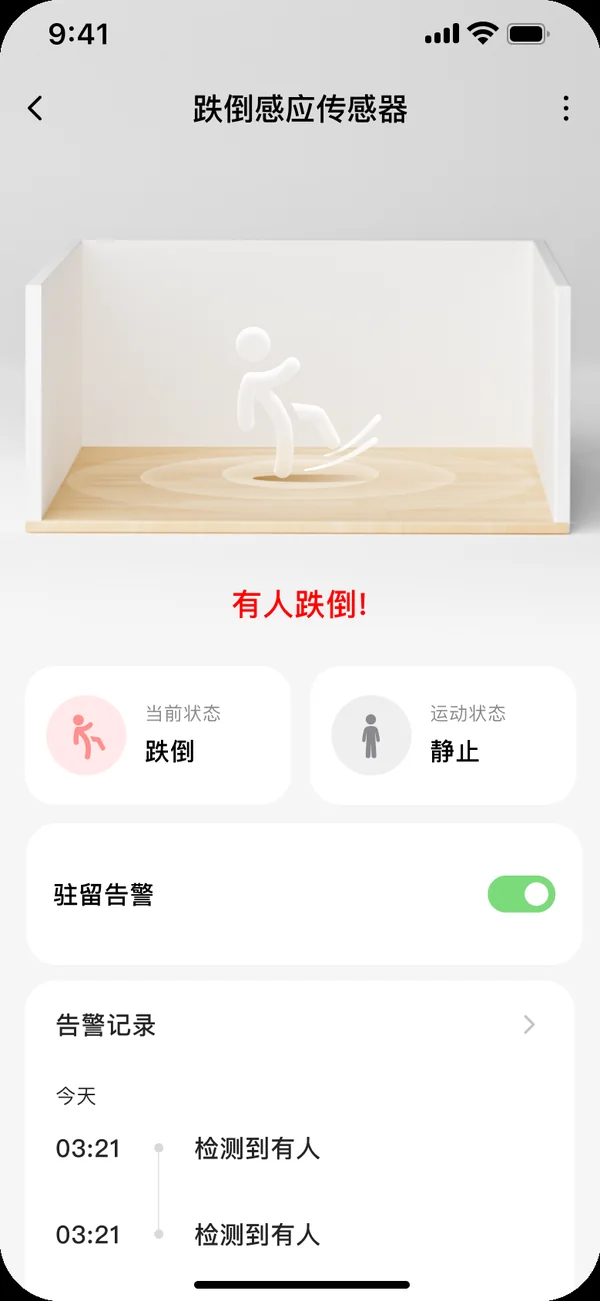
04Fall detected
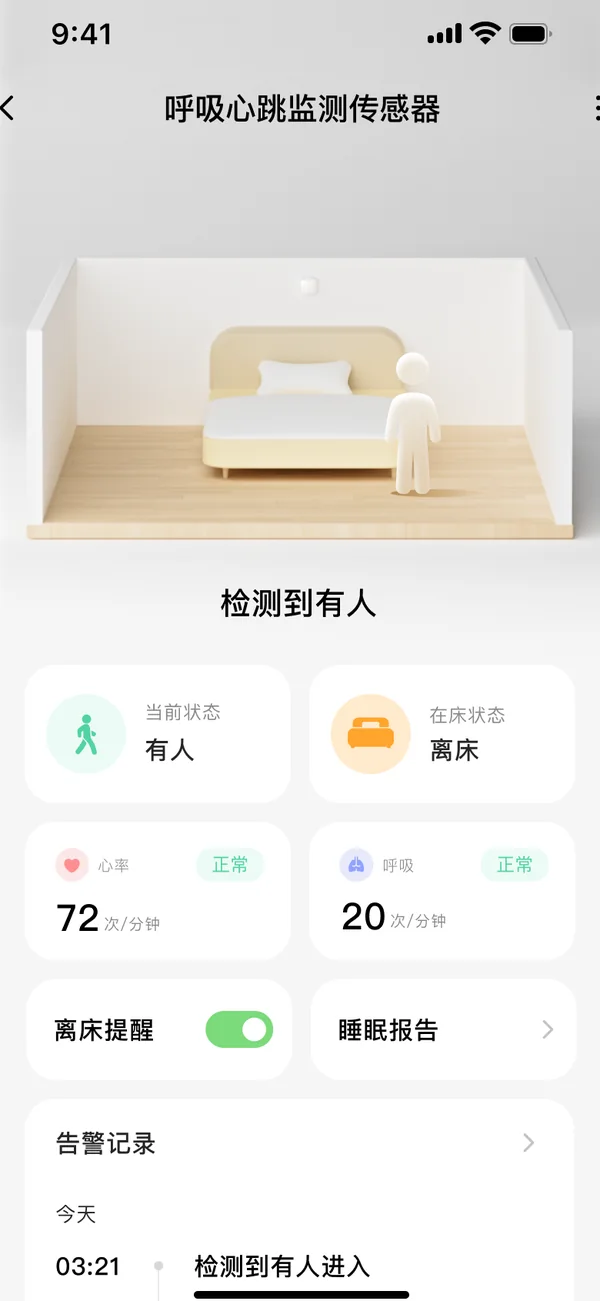
- Breathing Heart rate, breathing, in bed or out
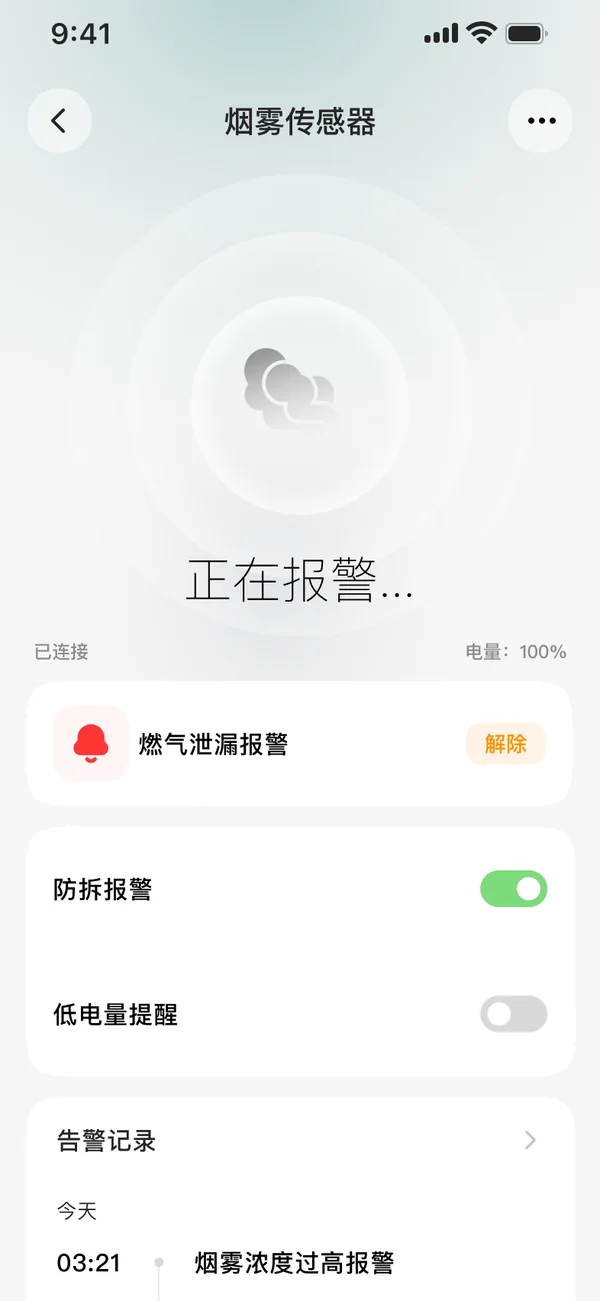
- Smoke Alarm when density runs high
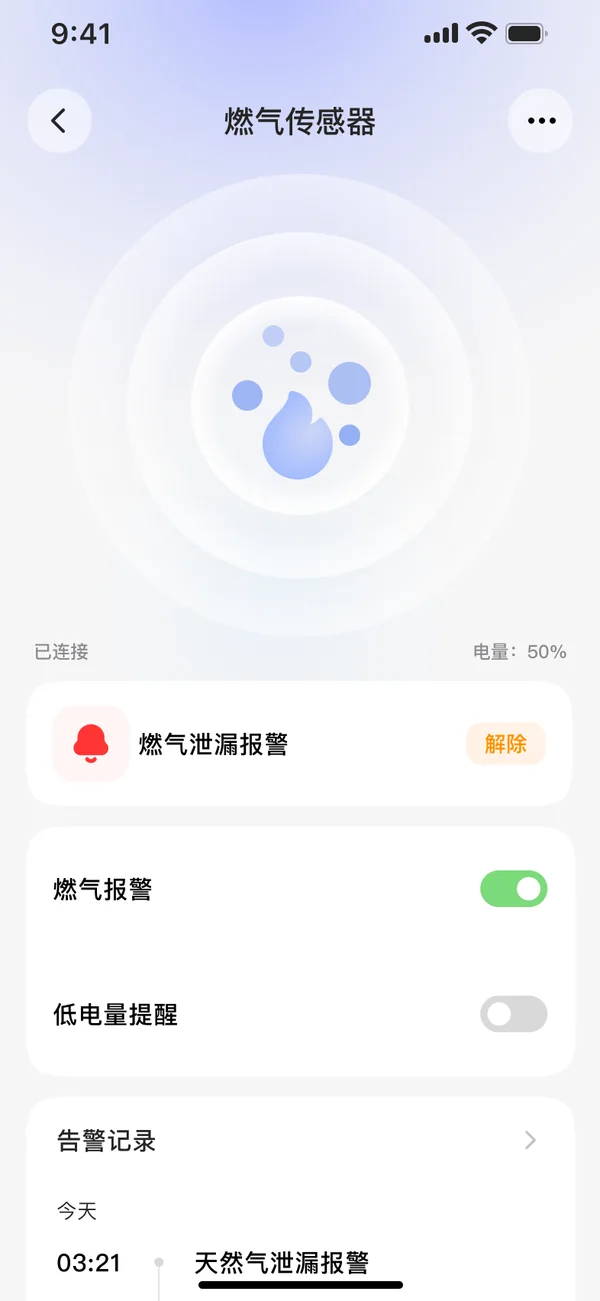
- Gas Leak alarm, cleared remotely
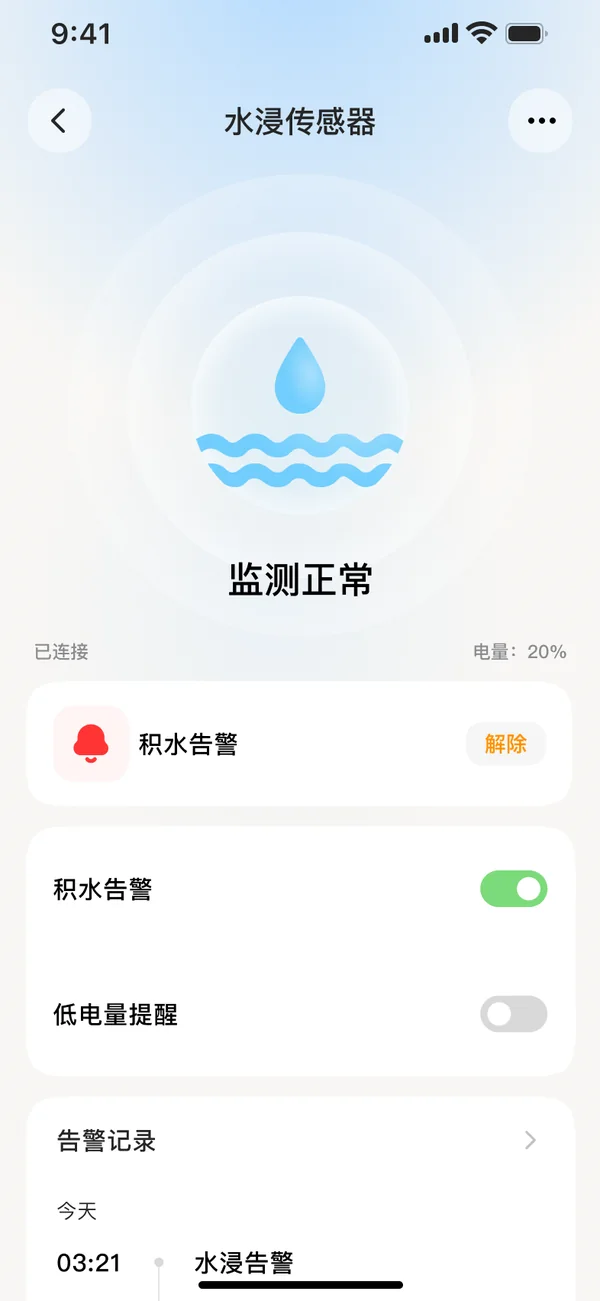
- Water leak Standing water alarm
- Emergency alarm One-tap SOS
Want to use this app, or ship it under your own brand?
Tell us your device categories and who you deliver to. We will help you choose the standard build, the neutral build or an OEM white-label.